Is your Epson L360 printer showing the “Service Required”, “A printer’s ink pad is at the end of its service life”, “Waste Ink Pad Counter Overflow”, or “Parts inside your printer are at the end of their service life” error?
Don’t worry—your printer is most likely not damaged. This error usually occurs when the internal Waste Ink Pad Counter reaches Epson’s preset maintenance limit. By using the latest Epson L360 Adjustment Program (Resetter), you can safely reset the counter and restore your printer in just a few minutes.
This guide covers everything you need, including the latest Epson L360 resetter download, installation steps, troubleshooting tips, supported operating systems, FAQs, and related Epson reset tools.
Quick Information
| Printer Model | Epson L360 |
|---|---|
| Series | Epson EcoTank L Series |
| Software | Epson Adjustment Program |
| Version | Latest 2026 |
| License | Free Download |
| Supported OS | Windows 11 / 10 / 8.1 / 8 / 7 (32-bit & 64-bit) |
| Connection | USB Cable |
| File Format | ZIP Archive |
Download Epson L360 Resetter
The latest Epson L360 Adjustment Program helps reset the Waste Ink Pad Counter, remove the Service Required error, and restore your printer without visiting a service center.
⬇ Download Epson L360 Resetter (2026)
Before Downloading
- Extract the ZIP archive before opening the program.
- Run the software as Administrator.
- Temporarily disable Windows Defender or antivirus if the file is blocked.
- Use a direct USB connection during the reset process.
About the Epson L360 Printer
The Epson L360 is one of Epson’s most popular all-in-one EcoTank printers, designed for home users, students, schools, and small businesses. It offers low-cost printing, high page yields, and reliable everyday performance.
Like every Epson EcoTank printer, the L360 performs automatic maintenance to keep the print head clean. During these maintenance cycles, excess ink is collected inside the waste ink pad. Once the internal counter reaches its preset limit, the printer automatically stops printing until the counter is reset.
Why Does Epson L360 Display “Service Required”?
The Epson L360 continuously records maintenance operations inside its EEPROM memory. Activities such as print head cleaning, nozzle checks, and ink charging increase the Waste Ink Pad Counter.
When the counter reaches Epson’s safety threshold, the printer enters protection mode and displays a Service Required message. This does not always mean the physical waste ink pad is full—it simply means the maintenance counter has reached its limit.
Supported Error Messages
| Error Message | Supported |
|---|---|
| Service Required | ✅ Yes |
| Waste Ink Pad Counter Overflow | ✅ Yes |
| Ink Pad Is At The End Of Its Service Life | ✅ Yes |
| Parts Inside Your Printer Are At The End Of Their Service Life | ✅ Yes |
| General Error | ✅ Yes |
| Maintenance Required | ✅ Yes |
Common Symptoms
- The printer refuses to print.
- Power and error lights flash continuously.
- Service Required message appears.
- Print jobs remain stuck in Windows.
- Epson Status Monitor displays an ink pad warning.
- The printer is detected but remains unavailable.
- Head cleaning no longer completes.
- Maintenance functions stop working.
- Printer pauses before every print job.
- Printing stops unexpectedly.
How to Reset Epson L360 Waste Ink Pad Counter
- Download the Epson L360 Adjustment Program.
- Extract the ZIP archive.
- Turn on your Epson L360 printer.
- Connect it directly using a USB cable.
- Run AdjProg.exe as Administrator.
- Select Epson L360.
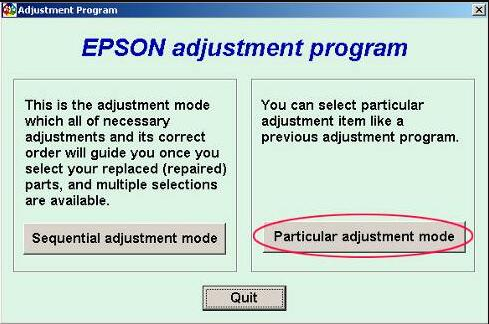
- Open Particular Adjustment Mode.
- Select Waste Ink Pad Counter.
- Click Check.
- Select Main Pad Counter.
- Click Initialization.
- Restart the printer after the reset completes.
- Print a test page.
Before Reset Checklist
- ✔ Install the latest Epson printer driver.
- ✔ Close Epson Status Monitor.
- ✔ Connect the printer using USB.
- ✔ Disable antivirus temporarily if necessary.
- ✔ Keep the printer powered on.
- ✔ Run the software as Administrator.
After Reset Checklist
- ✅ Service Required error removed.
- ✅ Waste Ink Counter reset successfully.
- ✅ Printer restarts normally.
- ✅ Test page prints correctly.
- ✅ All printer functions operate normally.
Key Features of Epson L360 Adjustment Program
- Reset Waste Ink Pad Counter
- EEPROM Initialization
- Read Printer Information
- Check Protection Counter Status
- Maintenance Functions
- Printer Initialization
- Service Mode Support
Should You Replace the Waste Ink Pad?
Yes. Although resetting removes the software restriction, the physical waste ink pad continues collecting ink. If your Epson L360 has printed thousands of pages, cleaning or replacing the waste ink pad is recommended to prevent ink leakage and maintain reliable performance.
Compatible Windows Versions
- Windows 11
- Windows 10
- Windows 8.1
- Windows 8
- Windows 7
- 32-bit & 64-bit Windows
Troubleshooting
Printer Not Detected
Reconnect the USB cable, restart the printer, and reinstall the Epson USB driver.
Initialization Failed
Run the Adjustment Program as Administrator and temporarily disable antivirus software.
Communication Error
Try another USB port and avoid USB hubs or extension cables.
Program Does Not Open
Extract the ZIP archive completely before launching the software.
Printer Still Shows Service Required
Repeat the reset procedure and make sure the Main Pad Counter option is selected.
Error Returns After Reset
The physical waste ink pad may need cleaning or replacement.
Frequently Asked Questions
Is the Epson L360 resetter free?
Yes. The latest Epson L360 Adjustment Program can be downloaded free from this page.
Does resetting damage the printer?
No. The Adjustment Program safely resets the maintenance counter.
Will resetting erase printer settings?
No. It only clears the Waste Ink Pad Counter.
Can I use the resetter on Windows 11?
Yes. The latest version supports Windows 11 and earlier Windows versions.
Can I reset the printer using Wi-Fi?
No. A direct USB connection is recommended.
How long does the reset process take?
Most Epson L360 resets are completed within 2–5 minutes.
Related Epson Resetter Downloads
- Epson L350 Resetter
- Epson L355 Resetter
- Epson L365 Resetter
- Epson L375 Resetter
- Epson L380 Resetter
- Epson L385 Resetter
- Why Need Reset Epson Printer
- Waste Ink Pad Counter Overflow Error
- How to Use Epson Adjustment Program
Popular Search Terms
Epson L360 resetter, Epson L360 Adjustment Program, Epson L360 service required fix, Epson L360 waste ink pad reset, Epson L360 printer reset tool, Epson L360 adjustment program download, Epson L360 free download, Epson L360 maintenance error, Epson L360 ink pad counter reset, Epson printer reset software.
The Epson L360 Resetter Adjustment Program is the easiest and safest way to fix the Service Required error, remove the Waste Ink Pad Counter Overflow warning, and restore your printer. Download the latest reset utility, follow the guide above, and get your Epson L360 working again in just a few minutes.
SupportPrinter24 provides regularly updated Epson resetters, Adjustment Programs, troubleshooting guides, and printer maintenance tutorials to help you solve Epson printer problems quickly and safely.