If your Epson L210 displays the “Service Required”, “A printer’s ink pad is at the end of its service life”, or “Waste Ink Pad Counter Overflow” message, don’t panic. This is one of the most common maintenance issues on Epson EcoTank printers.
The good news is that you can restore your printer in just a few minutes using the Epson L210 Adjustment Program (Resetter). This guide includes the latest download, complete reset instructions, troubleshooting solutions, FAQs, and everything you need to safely reset your Epson L210.
Quick Information
| Printer Model | Epson L210 |
|---|---|
| Category | Epson EcoTank InkTank Printer |
| Software | Epson Adjustment Program |
| Version | Latest 2026 |
| License | Free Download |
| Operating System | Windows 11, 10, 8.1, 8, 7 (32-bit & 64-bit) |
| Connection | USB Cable |
| File Type | ZIP Archive |
Download Epson L210 Resetter
The latest Epson L210 Adjustment Program allows you to reset the waste ink pad counter and remove the Service Required error safely.
⬇ Download Epson L210 Resetter (2026)
Important:
- Extract the ZIP file before running the software.
- Run the Adjustment Program as Administrator.
- Temporarily disable antivirus if Windows blocks the file.
- Connect the printer directly using a USB cable.
Why Does Epson L210 Show “Service Required”?
Your Epson L210 contains an internal counter called the Waste Ink Pad Counter. Every time the printer performs:
- Print Head Cleaning
- Nozzle Check
- Ink Charging
- Deep Cleaning
- Borderless Printing
- Automatic Maintenance
Small amounts of unused ink are sent into a waste ink pad inside the printer.
Instead of measuring the actual amount of ink, Epson estimates it using software. Once the counter reaches its safety limit, printing is disabled to prevent possible ink overflow.
This protection mechanism is completely normal and does not mean your printer is broken.
Common Error Messages
- Service Required
- Waste Ink Pad Counter Overflow
- A printer’s ink pad is at the end of its service life
- Parts inside your printer are at the end of their service life
- General Error
- Printer Error
- Communication Error
Symptoms of a Full Waste Ink Pad Counter
You may experience one or more of the following problems:
- Printer suddenly stops printing.
- Power light keeps blinking.
- Error LED flashes continuously.
- Windows detects the printer but cannot print.
- Epson Status Monitor shows a maintenance warning.
- All print jobs remain stuck in the queue.
- The printer refuses every print command.
How to Reset Epson L210 Waste Ink Pad Counter
- Download the Epson L210 Adjustment Program.
- Extract the ZIP file.
- Connect the printer using a USB cable.
- Turn on the printer.
- Run AdjProg.exe as Administrator.
- Select Epson L210.
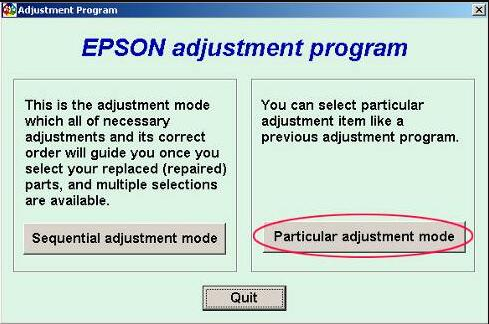
- Click Particular Adjustment Mode.
- Select Waste Ink Pad Counter.
- Click Check.
- Select Main Pad Counter.
- Click Initialization.
- Wait until the process finishes.
- Turn the printer OFF.
- Turn it ON again.
- Print a Test Page.
Things to Do Before Resetting
- Close Epson Status Monitor.
- Disconnect unnecessary USB devices.
- Use the original USB cable whenever possible.
- Disable antivirus temporarily if necessary.
- Run the program with Administrator privileges.
- Do not unplug the printer while resetting.
After Reset Checklist
After completing the reset successfully, verify the following:
- ✅ Printer starts normally.
- ✅ Service Required message disappears.
- ✅ Waste Ink Counter returns to 0%.
- ✅ Test page prints successfully.
- ✅ Printer works normally again.
Should You Replace the Waste Ink Pad?
Resetting only clears the software counter.
If your Epson L210 has printed thousands of pages over several years, cleaning or replacing the physical waste ink pad is recommended. This helps prevent ink leakage and extends the printer’s lifespan.
For lightly used printers, resetting the counter is often sufficient.
Supported Windows Versions
- Windows 11
- Windows 10
- Windows 8.1
- Windows 8
- Windows 7
- 32-bit Windows
- 64-bit Windows
Troubleshooting
Resetter Cannot Detect Printer
Reconnect the USB cable, restart the printer, and install the latest Epson USB driver.
Initialization Failed
Run the Adjustment Program as Administrator and temporarily disable antivirus software.
Communication Error
Use another USB port and avoid USB hubs.
Printer Still Blinking After Reset
Repeat the initialization process and ensure the Main Pad Counter was selected.
Error Returns Again
The physical waste ink pad may need cleaning or replacement.
Frequently Asked Questions
Is the Epson L210 resetter free?
Yes. The latest version is available for free download.
Will resetting erase my printer settings?
No. It only resets the waste ink counter.
Can I reset through Wi-Fi?
No. The Epson L210 requires a USB connection.
Does it work on Windows 11?
Yes. The latest version fully supports Windows 11.
Is resetting safe?
Yes. The Adjustment Program is designed specifically for Epson maintenance.
How long does the reset take?
Usually less than five minutes.
Related Epson Resetter Downloads
- Epson L110 Resetter
- Epson L120 Resetter
- Epson L220 Resetter
- Epson L310 Resetter
- Epson L360 Resetter
- Epson L365 Resetter
- Why Need Reset Epson Printer
- Waste Ink Pad Counter Overflow Error
- How to Use Epson Adjustment Program
Popular Search Terms
Epson L210 resetter, Epson L210 Adjustment Program, Epson L210 service required fix, Epson L210 waste ink pad reset, Epson L210 printer reset tool, Epson L210 Adjustment Program free download, Epson L210 reset utility, Epson L210 ink pad counter reset, Epson printer reset software, Epson L210 maintenance error.
Conclusion
The Epson L210 Resetter Adjustment Program is the quickest and safest way to remove the Service Required error and reset the waste ink pad counter. Simply download the latest adjustment program, follow the step-by-step instructions, and restore your Epson L210 printer in just a few minutes.
SupportPrinter24 regularly updates Epson reset utilities, troubleshooting guides, and printer maintenance tutorials to help you keep your Epson printer running smoothly. Be sure to explore our related resetter downloads for other Epson printer models.