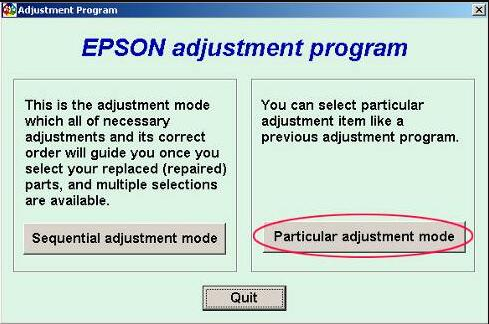
How to Fix Common Epson Printer Problems starts with one important idea: do not rush straight into random resets. Many Epson printer issues look serious at first, but they are often caused by clogged nozzles, connection failures, paper feed problems, driver conflicts, or maintenance counter warnings. In some situations, users may need the Epson Adjustment Program to resolve maintenance-related errors, but most common Epson printer problems can be identified and fixed by following a structured troubleshooting process. This guide explains the most common Epson printer issues and the practical steps you can take to solve them safely and effectively.
That is why the smartest approach is not guessing. It is diagnosing the symptom, applying the right fix in the right order, and only using advanced tools when the normal checks no longer help. This guide is written for real Epson users who want clear, technical, and practical steps without confusing filler.
If your printer is printing blank pages, showing offline status, flashing error lights, feeding paper badly, or warning that parts are at the end of service life, the sections below will help you isolate the problem and correct it more safely.
Before You Start: Check the Basics First
Before you assume a hardware fault, spend two minutes on the basics. Many Epson printer problems are caused by connection or setup issues rather than damaged components.
- Make sure the printer is powered on and fully initialized.
- Check whether any paper scraps are stuck inside the paper path.
- Confirm that the correct printer is selected on your computer.
- Inspect USB or Wi-Fi connection status.
- Look at the printer screen or indicator lights for the exact message.
If there is a specific code or warning on the display, write it down first. Fixing an Epson printer is much easier when you work from the actual symptom instead of trying five different solutions at once.
How to Fix Common Epson Printer Problems by Symptom
1. Epson Printer Is Offline or Not Detected
An Epson printer showing as offline is often a communication problem, not a printer failure. This can happen after a router change, Windows update, USB port conflict, or driver mismatch.
Try these steps in order:
- Restart the printer and the computer.
- Reconnect the USB cable or reconnect the printer to the Wi-Fi network.
- Open printer settings and make sure Use Printer Offline is not enabled.
- Set the Epson printer as the default printer.
- Remove the device and reinstall it with the correct driver.
If the printer appears online but still does not print, clear the print queue. A stuck job can block all later jobs and make the printer look unresponsive.
2. Epson Printer Prints Blank Pages
Blank output usually points to one of three things: clogged printhead nozzles, empty or improperly recognized ink, or incorrect print settings.
Start with a nozzle check. If the pattern shows missing lines, run a printhead cleaning cycle. Do not run repeated cleaning back to back too many times, because that wastes ink and sometimes overheats the process. One cleaning followed by a short wait is usually better than four cleanings in a row.
Also check:
- Ink tanks or cartridges are not empty.
- Protective tape was removed from new cartridges.
- The paper type selected in the driver matches the paper in the tray.
- You are not printing white text or transparent objects by mistake.
3. Epson Print Quality Is Poor, Faded, or Streaky
This is one of the most searched versions of How to Fix Common Epson Printer Problems because it affects both home users and small offices. Poor print quality usually develops slowly, which makes people ignore it until text becomes unreadable or photos look washed out.
Run through this checklist:
- Print a nozzle check pattern.
- Run printhead cleaning only if the nozzle check shows gaps.
- Use the correct paper profile in the printer driver.
- Check print quality mode and avoid draft mode for important jobs.
- Perform printhead alignment if text looks shadowed or double-lined.
If the printer has been unused for a long time, dried ink may be the cause. In that case, regular maintenance functions often solve the issue better than reinstalling software.
4. Paper Jam or Paper Feed Problem
Paper jams are not always caused by a full sheet being trapped. Small torn pieces, dust on rollers, curled paper, or loading too many sheets can create the same symptom.
Remove the paper slowly and in the direction of feed if possible. Then inspect the roller area with a light. Do not pull aggressively because torn scraps left behind can cause repeat jams.
To reduce repeat feeding problems:
- Use flat, dry paper.
- Do not overfill the input tray.
- Adjust the paper guides snugly but not too tightly.
- Clean dust from the feed path.
- Avoid mixing paper sizes or types in one stack.
5. Epson Ink Not Recognized
If the printer says an ink cartridge is not recognized or the ink level is not reading correctly, the contact points may be dirty, the cartridge may not be seated correctly, or the chip may not be compatible.
Power off the printer before removing the cartridge. Reinstall it carefully until it clicks into place. If needed, inspect the cartridge contact area gently and make sure nothing is blocking proper connection.
For EcoTank models, confirm that tanks were filled correctly and that the printer completed its charging or initialization process after refill or setup.
6. Epson Printer Shows General Error or Service Required
If your printer displays a maintenance warning, refer to our Epson Adjustment Program Guide for model-specific reset instructions.
Some Epson printers eventually display warnings related to internal maintenance, including waste ink pad protection or service life limits. In that case, the printer may stop normal operation even if it can still physically print.
This is where users often start searching for adjustment tools or resetter software. That can be useful in the correct situation, but only after basic checks are complete. If there is a mechanical issue, sensor problem, or paper path obstruction, resetting alone will not solve the root cause.
When a service warning appears:
- Restart the printer and confirm the exact message.
- Check for carriage blockage, paper scraps, and cover sensor issues.
- Review whether the model is known for waste ink pad counter warnings.
- Use the proper maintenance or adjustment procedure only if it matches the actual error.
For model-specific maintenance guidance, always compare the behavior of your printer with reliable documentation before applying advanced resets.
How to Fix Common Epson Printer Problems Without Making Them Worse
A common mistake is applying every possible fix at once. Users clean the head repeatedly, reinstall the driver, unplug the printer, reset the queue, and change paper settings in one session. After that, it becomes impossible to tell what actually helped.
A better technical method is this:
- Identify one clear symptom.
- Run the related diagnostic test.
- Apply one relevant fix.
- Test again.
- Move to the next step only if the issue remains.
This approach saves time, avoids unnecessary ink waste, and lowers the risk of turning a simple problem into a mixed configuration issue.
Troubleshooting Checklist for Common Epson Issues
If the printer does not print at all
- Check power and cable or Wi-Fi connection.
- Clear pending print jobs.
- Set the printer as default.
- Reinstall or update the driver.
If print quality suddenly drops
- Run nozzle check.
- Clean printhead only if needed.
- Check paper settings and print mode.
- Align the printhead.
If paper jams keep repeating
- Inspect for small paper scraps.
- Load fewer sheets.
- Use clean, dry paper.
- Check tray guides and rollers.
If the printer shows maintenance or service messages
- Record the exact error.
- Check for mechanical obstruction.
- Confirm whether the issue is a waste ink pad counter warning.
- Use model-correct service steps only.
Useful External Resources
When you need official or supporting references, these resources may help:
- Epson Support — official support page for drivers, manuals, and troubleshooting.
- Microsoft Support — useful for Windows printing and driver-related issues.
- Inkjet Printing Overview — background reading on how inkjet printing works.
FAQ
Why is my Epson printer on but not printing?
The printer may be online physically but blocked by a stuck print queue, wrong driver, offline setting, or connection problem. Check printer status, clear old jobs, and confirm the device is selected correctly.
How often should I clean an Epson printhead?
Only when the nozzle check shows missing lines or print quality defects. Repeated cleaning without diagnosis can waste ink and may not solve the real problem.
What does “service required” mean on an Epson printer?
It usually indicates an internal maintenance issue, often related to the waste ink system or another protected service condition. The exact meaning depends on the model and message shown.
Can a paper jam message appear even when no full sheet is stuck?
Yes. Small torn pieces of paper, dust, a sensor obstruction, or feed roller issues can trigger the same message even when the paper path looks mostly clear.
Why is my Epson printer printing faded text?
Common causes include clogged nozzles, incorrect paper settings, low ink, draft mode, or printhead alignment issues. Start with a nozzle check before trying other fixes.
Should I reset my Epson printer immediately when an error appears?
No. First identify whether the problem is caused by connection, print settings, paper handling, ink flow, or an actual service counter warning. A reset is only appropriate for certain problems.
Related Epson Troubleshooting & Maintenance Guides
While many Epson printer issues can be solved using basic troubleshooting, some errors require model-specific maintenance procedures. If your printer is displaying a service warning, waste ink pad message, blinking lights, or persistent printing errors, the guides below can help you identify the exact cause and apply the correct solution.
Epson Adjustment Program Download
Many Epson maintenance-related errors are connected to the waste ink counter system. In these cases, the correct Epson Adjustment Program can help restore normal printer operation.
👉 Read the complete guide:
https://supportprinter24.com/epson-adjustment-program-reset-software/
How to Fix Epson Service Required Error
If your Epson printer displays a Service Required message, the issue is often related to the internal maintenance counter reaching its limit.
👉 Read more:
https://supportprinter24.com/epson-service-required-error-fix/
Epson Waste Ink Pad Counter Reset Guide
Learn how the waste ink counter works, when a reset is necessary, and what precautions should be taken before performing maintenance procedures.
👉 Read more:
https://supportprinter24.com/epson-waste-ink-pad-counter-reset-guide/
Popular Epson Adjustment Programs
Many Epson users also search for model-specific adjustment tools and reset procedures.
Recommended Epson Resources
For users who regularly maintain Epson printers, the following resources provide additional troubleshooting, maintenance, and reset information:
By understanding the exact cause of the problem and following the correct troubleshooting procedure, most Epson printer issues can be resolved without unnecessary repairs or downtime.
Conclusion
Understanding How to Fix Common Epson Printer Problems is less about memorizing random tricks and more about following a clean diagnostic path. Most Epson issues fall into a few predictable categories: communication, ink flow, paper handling, print settings, or maintenance protection. Once you identify which category your printer fits into, the solution usually becomes much clearer.
If you manage Epson printers regularly, it helps to keep a model-specific maintenance routine, use the correct driver, and avoid unnecessary resets. When basic troubleshooting is no longer enough, then advanced tools and model-matched service procedures become far more effective because you are using them for the right reason, not as a guess.