If your Epson L300 printer displays the “Service Required”, “A printer’s ink pad is at the end of its service life”, or “Waste Ink Pad Counter Overflow” error, you’re in the right place.
The Epson L300 automatically monitors its internal waste ink pad counter. Once the counter reaches the factory-defined limit, the printer stops working until the counter is reset. This guide explains how to download and use the latest Epson L300 Adjustment Program (Resetter) safely.
Quick Information
| Printer Model | Epson L300 |
|---|---|
| Printer Type | Epson EcoTank InkTank Printer |
| Software | Epson Adjustment Program |
| Latest Version | 2026 |
| License | Free Download |
| Supported OS | Windows 11, Windows 10, Windows 8.1, Windows 8, Windows 7 (32-bit & 64-bit) |
| Connection | USB Cable |
Download Epson L300 Resetter
Download the latest Epson L300 Adjustment Program to reset the waste ink pad counter and remove the Service Required error.
⬇ Download Epson L300 Resetter (2026)
Important Before Downloading
- Extract the ZIP file before running the reset utility.
- Always run the program as Administrator.
- Temporarily disable antivirus software if it blocks the resetter.
- Connect the printer directly with a USB cable.
Why Does Epson L300 Display “Service Required”?
During normal printing, the Epson L300 performs automatic maintenance such as print head cleaning, nozzle checks, and ink charging. Excess ink from these maintenance tasks is collected in an internal waste ink pad.
Instead of measuring the actual ink level, Epson uses an internal counter to estimate waste ink usage. When this counter reaches its safety limit, the printer automatically stops printing to prevent possible ink leakage.
This is a normal maintenance feature and does not necessarily indicate a hardware failure.
Common Error Messages
- Service Required
- Waste Ink Pad Counter Overflow
- A printer’s ink pad is at the end of its service life.
- Parts inside your printer are at the end of their service life.
- General Error
- Printer Error
- Ink Pad Service Required
Symptoms of a Full Waste Ink Pad Counter
- The printer stops printing suddenly.
- The power light flashes continuously.
- The error LED blinks repeatedly.
- Windows detects the printer but cannot print.
- Epson Status Monitor displays a maintenance warning.
- Print jobs remain stuck in the queue.
- The printer refuses all print commands.
How to Reset Epson L300 Waste Ink Pad Counter
- Download the Epson L300 Adjustment Program.
- Extract the downloaded ZIP archive.
- Connect your Epson L300 via USB.
- Turn the printer ON.
- Run AdjProg.exe as Administrator.
- Select Epson L300 from the printer list.
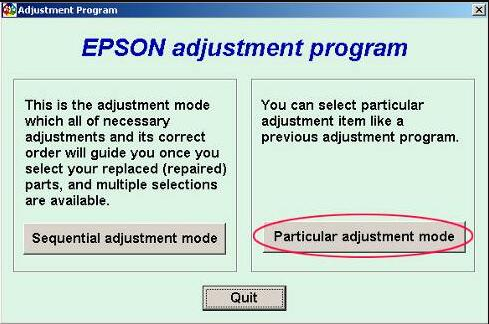
- Open Particular Adjustment Mode.
- Select Waste Ink Pad Counter.
- Click Check to view the current counter value.
- Tick Main Pad Counter.
- Click Initialization.
- Wait until the reset process is complete.
- Restart your printer.
- Print a test page.
Things to Do Before Resetting
- Close Epson Status Monitor.
- Disconnect unnecessary USB devices.
- Use the original Epson USB cable.
- Run the program with Administrator privileges.
- Keep the printer powered on during the reset.
- Do not disconnect the USB cable until the reset finishes.
After Reset Checklist
- ✅ Service Required message disappears.
- ✅ Waste Ink Counter resets to 0%.
- ✅ Printer starts normally.
- ✅ Test page prints successfully.
- ✅ Printer is ready for normal use.
Should You Replace the Waste Ink Pad?
Yes, if your Epson L300 has been used extensively over several years, replacing or cleaning the physical waste ink pad is recommended.
Resetting only clears the internal counter. It does not remove the ink already stored inside the waste ink pad.
Supported Windows Versions
- Windows 11
- Windows 10
- Windows 8.1
- Windows 8
- Windows 7
- 32-bit Windows
- 64-bit Windows
Troubleshooting
Printer Not Detected
Reconnect the USB cable, restart the printer, and reinstall the Epson USB driver.
Initialization Failed
Run the Adjustment Program as Administrator and temporarily disable your antivirus.
Communication Error
Use another USB port and avoid USB hubs or extension cables.
Printer Still Blinking
Repeat the initialization process and ensure the Main Pad Counter option is selected.
Error Appears Again After Reset
Inspect the physical waste ink pad and clean or replace it if necessary.
Frequently Asked Questions (FAQ)
Is the Epson L300 resetter free?
Yes. The latest Epson L300 Adjustment Program is available as a free download.
Is it safe to reset the waste ink counter?
Yes. The resetter is designed specifically for Epson printer maintenance.
Can I use the resetter on Windows 11?
Yes. It fully supports Windows 11 and previous Windows versions.
Will resetting delete my printer settings?
No. Only the waste ink pad counter is reset.
How long does the reset process take?
Most resets are completed within 2 to 5 minutes.
Can I reset using Wi-Fi?
No. A direct USB connection is required.
Related Epson Resetter Downloads
- Epson L110 Resetter
- Epson L120 Resetter
- Epson L210 Resetter
- Epson L310 Resetter
- Epson L350 Resetter
- Epson L360 Resetter
- Why Need Reset Epson Printer
- Waste Ink Pad Counter Overflow Error
- How to Use Epson Adjustment Program
Popular Search Terms
Epson L300 resetter, Epson L300 Adjustment Program, Epson L300 service required fix, Epson L300 waste ink pad reset, Epson L300 reset utility, Epson L300 printer reset tool, Epson L300 adjustment program free download, Epson L300 maintenance error, Epson L300 ink pad counter reset, Epson printer adjustment program.
The Epson L300 Resetter Adjustment Program provides a quick and reliable solution for fixing the Service Required error and resetting the waste ink pad counter. Simply download the latest version, follow the step-by-step guide above, and restore your Epson L300 printer to normal operation.
SupportPrinter24 is continuously updated with the latest Epson resetters, troubleshooting guides, printer maintenance tutorials, and adjustment programs to help users solve Epson printer errors quickly and safely.