Why is my Epson printer not printing when the ink is full? It sounds like a contradiction, but it is one of the most common Epson problems. A full cartridge or full tank does not automatically mean ink is reaching the paper. In many cases, the issue is not the ink level at all. The real cause is often blocked nozzles, a paused print queue, a communication error, wrong print settings, or a maintenance condition that stops the printer even though ink is still available.
That is why replacing ink again usually does nothing. The better approach is to follow the symptom, test one thing at a time, and avoid random resets. This guide explains the most likely reasons an Epson printer refuses to print even when the ink looks full, along with practical fixes you can apply without turning a small issue into a bigger one.
Why Is My Epson Printer Not Printing When the Ink Is Full? Start Here
Before going deep into printer maintenance, begin with the simple checks. Many Epson printers fail to print because of software or queue issues, not because of a defective print system.
- Make sure the printer is turned on and fully ready.
- Confirm the correct Epson printer is selected on your computer.
- Check whether the printer is showing offline, paused, or an error message.
- Look for paper jams or flashing lights.
- Open the print queue and cancel any stuck jobs.
If those basics do not restore printing, move to the causes below.
1. The Ink Is Full, but the Nozzles Are Clogged
This is the most common reason behind the question, Why is my Epson printer not printing when the ink is full. Epson printers can have plenty of ink in the tank or cartridge, yet still print blank pages or missing colors when the printhead nozzles are clogged.
This often happens when:
- The printer sits unused for too long.
- Printhead cleaning has been skipped for a while.
- Dried ink blocks normal ink flow.
- The printer is used irregularly for color printing.
How to fix it
- Run a Nozzle Check from the Epson maintenance menu.
- Review the pattern carefully for broken lines or missing sections.
- Run Print Head Cleaning only if the nozzle check shows gaps.
- Wait a few minutes, then print the nozzle check again.
Avoid running repeated cleanings too fast. That wastes ink and does not always improve the result.
2. The Printer Is Receiving the Job, but the Queue Is Stuck
Sometimes the printer is not the real problem at all. Windows may be holding a damaged or stalled print job in the queue, which blocks everything behind it. From the user side, it looks like the Epson printer is ignoring commands even though ink is full and paper is loaded.
How to fix it
- Open the printer queue from Windows settings.
- Cancel all pending print jobs.
- Restart the printer.
- Send a small test page instead of a large document first.
If the queue keeps freezing, restart the print spooler service or reboot the computer before testing again.
3. Wrong Paper or Print Settings Are Blocking Output
Another overlooked cause is mismatched print settings. If the selected paper size, layout, media type, or orientation does not match the loaded paper, Epson printers may behave strangely. In some cases, they feed paper incorrectly or appear to print nothing useful at all.
This is especially common after switching between photo paper, plain paper, borderless mode, or custom sizes.
What to check
- Paper size in the print dialog
- Paper type or media setting
- Orientation and layout
- Whether the document contains a blank page
- Whether draft mode or unusual color settings are enabled
If you recently changed settings for a different job, return everything to standard defaults and test again.
4. The Printer Is Online Physically, but Offline in Windows
An Epson printer can be powered on and connected, yet Windows may still treat it as offline. When that happens, the ink level becomes irrelevant because the computer is not sending usable print data to the device.
This can happen after a network change, USB reconnection, driver issue, or interrupted printer installation.
How to fix Epson offline problems
- Open printer settings on your computer.
- Make sure Use Printer Offline is disabled.
- Set the Epson printer as the default printer.
- Reconnect USB or reconnect the printer to Wi-Fi.
- Remove and reinstall the printer if Windows still cannot communicate properly.
5. Full Ink Does Not Mean the Cartridge or Tank Is Working Correctly
Users often trust the ink display too much. A printer may show full or nearly full ink, but the cartridge chip, tank priming, or internal delivery path may still have a problem. This is one more reason the search phrase Why is my Epson printer not printing when the ink is full is so common.
Possible causes include:
- New cartridge not seated properly
- Protective seal not fully removed during installation
- Air in the ink line on some tank systems
- Ink recognition issue
- Old cartridge or poor-quality replacement ink
What to do
Turn the printer off, reinstall the cartridge or check the tank setup carefully, then power the printer back on. If the model uses refill tanks, make sure the initial charging process was completed correctly after setup or refill.
6. The Printhead Needs Alignment, Not More Ink
If your Epson printer produces faint, shifted, or incomplete text, the issue may not be an empty ink system. It may be a printhead alignment problem. This is more visible in small fonts, tables, and documents with thin lines.
Fix
- Open Epson maintenance settings.
- Run Print Head Alignment.
- Print a test page after alignment completes.
This will not solve a severe clog, but it can fix poor text output that users mistakenly blame on low ink.
7. A Driver or Software Conflict Is Blocking the Print Command
When the Epson printer does nothing at all, outdated or corrupted drivers are a realistic cause. This is especially true after operating system updates, switching from USB to Wi-Fi, or reinstalling printer software over older versions.
Best approach
- Remove the printer from your computer.
- Install the correct driver for the exact Epson model.
- Restart both printer and computer.
- Test with a basic text document first.
Do not install random drivers from unrelated model pages. Model mismatch creates strange behavior that looks like hardware failure.
8. A Maintenance Error Is Preventing Printing
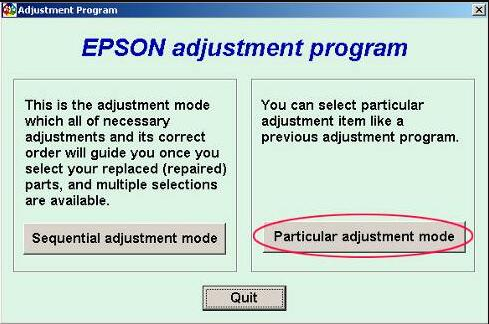
Sometimes the printer has ink and paper, but internal maintenance protection has stopped normal use. This may include waste ink pad counter warnings, service messages, or other Epson protection states. In those cases, the printer is not refusing to print because ink is low. It is refusing because firmware or maintenance logic has paused operation.
If your printer shows a service-related message, do not keep forcing jobs through the queue. First identify the exact error on the screen or status monitor, then follow the model-specific maintenance path.
How to Diagnose the Problem in the Right Order
Instead of guessing, use this technical workflow:
- Print a nozzle check.
- Clear the print queue.
- Confirm the printer is not offline.
- Check paper and print settings.
- Test with one simple document.
- Reinstall the correct driver if nothing changes.
- Look for maintenance or service warnings.
This sequence works better than trying every fix at once.
Troubleshooting Checklist
If the Epson printer prints blank pages
- Run nozzle check
- Clean printhead if pattern has gaps
- Check paper size and layout settings
- Confirm the correct printer is selected
If the Epson printer does not respond at all
- Clear the queue
- Restart printer and computer
- Check offline status
- Reinstall the driver
If the printer makes noise but nothing appears on paper
- Inspect for clogged nozzles
- Check ink path or cartridge seating
- Run a test print after head cleaning
If the issue keeps returning
- Avoid unnecessary head cleaning cycles
- Print regularly to reduce drying
- Use correct media settings
- Check for maintenance warnings
Helpful External Resources
- Epson Support — official drivers, manuals, and troubleshooting pages.
- Microsoft: Troubleshooting Offline Printer Problems
- Microsoft: Fix Print Job Stuck in Queue
FAQ
Why is my Epson printer not printing when the ink is full?
The most common reasons are clogged nozzles, a stuck print queue, offline status, wrong print settings, driver problems, or an Epson maintenance warning. Full ink only means ink is available, not that it is flowing correctly to the page.
Why does my Epson printer print blank pages with full ink?
Blank pages usually point to clogged printhead nozzles, incorrect paper or software settings, or a printer selection problem. A nozzle check is the best first test.
Should I clean the printhead repeatedly?
No. Run a nozzle check first. Clean only when the pattern shows missing lines. Repeating cleaning too often wastes ink and may not fix the actual cause.
Can the print queue stop my Epson printer from printing?
Yes. One damaged or frozen print job can block everything else. Clearing the queue is often one of the fastest fixes.
Can Epson ink show full but still fail to print?
Yes. Ink level indicators do not guarantee proper delivery. The cartridge, tank system, chip recognition, or nozzles may still have a problem.
Do I need a reset tool if the ink is full and printing fails?
Not usually. Most no-print issues with full ink are caused by clogs, queue errors, or communication problems. Reset tools are only relevant when a specific service or protection error appears.
Conclusion
Why is my Epson printer not printing when the ink is full is really a question about ink flow, communication, and printer logic, not just ink quantity. In many cases, the printer has enough ink but cannot place it on paper because the nozzles are blocked, the queue is frozen, the device is offline, or the settings are wrong.
The good news is that most of these problems can be narrowed down quickly with the right order of checks. Start with nozzle check, queue, offline status, and settings before assuming something serious has failed. That method is faster, cleaner, and far more reliable than changing cartridges again or trying random resets.