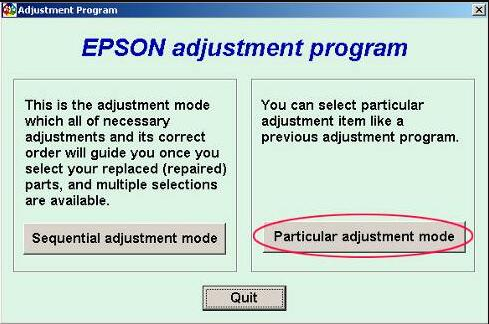
The Epson EcoTank L4160 Adjustment Program is often searched by users who face the “Service Required” error or need to reset the waste ink counter. Understanding how the maintenance system works—and knowing which tools are safe—is essential for protecting your EcoTank printer from damage, corrupted firmware, or malware-infected resetters.
This guide explains everything you need to know: how the L4160 maintenance system works, keygen risks, safe reset methods, waste ink pad care, and how to troubleshoot common issues.
Understanding the Epson L4160 Maintenance System ! Why the Epson L4160 Shows “Service Required”
Waste Ink Counter Overflow
Every cleaning cycle generates residual ink. The L4160 stores this waste in its internal pads. When the counter reaches its limit, the printer locks itself to prevent overflow, leading to the “Service Required” message.
Firmware Protection Triggers
Epson firmware continually monitors system health. If it detects unsafe ink saturation or maintenance overloads, it triggers a mandatory stop to protect the hardware.
Heavy Print Volume Impact
High-volume users reach waste ink limits faster. Frequent cleaning cycles or printhead flushes also speed up counter consumption.
Role of Adjustment Programs in Epson Printers
Waste Ink Pad Counter Reset
Adjustment programs reset the internal waste ink counter, clearing the service message.
Technical Maintenance Utilities
They include tools for deep cleaning, ink charge, head alignment, boundary testing, and EEPROM functions.
Calibration and System Checks
Technicians use them to diagnose mechanical issues, check sensors, and ensure proper alignment after servicing.
Epson L4160 Adjustment Program Keygen – What Users Need to Know
Many users search for Epson L4160 Adjustment Program Keygen tools hoping to unlock the software freely. However, the risks far outweigh the benefits.
What the Keygen Claims to Do
- Unlock the full adjustment tool
- Remove paid restrictions
- Enable unlimited resets
- Provide access to advanced printer utilities
Risks of Using Keygen Versions
- Malware, spyware, or ransomware infections
- Corrupting printer firmware or Windows files
- Violating copyrights and licensing laws
- Reset failure or incomplete counter resets
- Hidden scripts that can steal personal data
Keygens are unreliable and dangerous for your system.
Safer Alternatives to Keygen Tools
- Epson’s official maintenance utilities
- Technician-level reset using a licensed program
- Manual maintenance, such as cleaning waste ink pads
These methods are safe, legal, and far more reliable.
Epson L4160 Resetter Free Download – Is It Safe or Risky?
Many websites offer an Epson L4160 Resetter Free Download, but most are unsafe or incompatible.
What the Epson L4160 Resetter Actually Does
- Resets the waste ink pad counter
- Clears the “Service Required” notification
- Restores printer functionality instantly
Limitations of Free Download Resetters
- Often don’t work with the EcoTank L4160
- High chance of viruses or hidden scripts
- Outdated versions that fail on new Windows systems
- Cause partial resets or corrupted data
Safe Download Criteria You Should Always Check
- Genuine publisher details and digital signatures
- Compatibility with your OS (Windows 7–11)
- Original, unmodified EXE files
- Avoid cracked or patched versions at all costs
Verified Safe Alternatives
- Official Epson cleanup utilities
- Reset via authorized service centers
- EcoTank L4160 maintenance reset using firmware and manual cleaning when appropriate
Ecotank L4160 Adjustment Program Reset Tool – Full Overview
What This Reset Tool Is Designed For
- Waste ink counter reset
- Registering printer ID
- Reading/writing EEPROM data
- Running internal tests and calibrations
Features Found in the Genuine Reset Tool
- Full support for EcoTank series
- One-time, limited-use activation
- Standard maintenance control panel
- Safe, stable, and virus-free operation
How to Identify a Legitimate Reset Tool
- Comes from a licensed distributor
- Requires real activation steps
- No keygens, no patched or cracked files
- Clean digital signature
How to Reset the Epson L4160 Without Unsafe Tools
Basic Power Reset When to Use When the printer glitches or freezes.
Steps
- Turn off the printer.
- Unplug power for 3 minutes.
- Reconnect and restart.
- Perform a nozzle check.
Firmware Update Reset
Why It Helps
New firmware may fix bugs, reset loops, and improve maintenance handling.
How to Update Safely
- Download from Epson’s official website
- Install via the Epson Software Updater
- Restart the printer after completion
Epson Official Maintenance Software
Includes tools for:
- Nozzle check
- Printhead cleaning
- Ink-refresh cycles
- System status monitoring
Manual Waste Ink Pad Cleaning
When This Works
If pads are physically saturated.
Risks
Messy, requires care, voids warranty if done wrong.
L4160 Waste Ink Pad Maintenance & Replacement
How to Know the Waste Ink Pad Is Full
- Recurring service errors
- Ink residue dripping inside the printer
- Slower or blurry prints
Replacement Options
Professional Service Center Replacement
Benefits:
- Safe replacement
- Prevents hardware damage
- Maintains warranty
Cost: Varies by region.
DIY Waste Ink Maintenance
Required Tools: Gloves, cotton pads, tissue, screwdriver, alcohol.
Steps:
- Remove back/bottom cover
- Take out waste ink pads
- Clean or replace them
- Allow to dry before reinstall
Safety Precautions:
Wear gloves and avoid spills.
External Waste Ink Tank Setup (Optional)
- Prevents quick saturation
- Easier long-term maintenance
- Must monitor the tank level manually
Common Issues When Using Adjustment Programs or Reset Tools Printer Not Detected
- Faulty USB cable
- Incorrect port selection
- Missing drivers
“Communication Error”
- Firewall blocking the app
- Wrong printer model selected
- Damaged USB cable
Reset Completed But Error Still Shows
- Counter wasn’t reset fully
- Waste ink pads are physically full
- Incorrect reset sequence
Practical Real-User Scenarios
L4160 “Service Required” After Long Usage
Cause: Waste ink counter reached full.
Solution: Reset + pad cleaning.
Keygen Version Failed to Reset
Cause: Corrupted or modified software.
Solution: Switched to a licensed version.
Free Resetter Files Not Opening
Cause: OS mismatched or broken file.
Solution: Used official-compatible utility.
Using Legit Tool vs Risky Patch
Outcome: Legit tool performed stable resets; patched version caused firmware error.
Frequently Asked Questions (SEO-Driven FAQ)
Q1: Is the Epson L4160 adjustment program keygen safe to use?
No. Keygens are unsafe, illegal, and often contain malware.
Q2: Can I reset the Epson L4160 without downloading software?
Yes—power reset, firmware update, or manual waste ink cleaning may help.
Q3: What should I do if the resetter is not detecting my printer?
Check the USB cable, reinstall drivers, and disable firewall temporarily.
Q4: Does the EcoTank L4160 adjustment program reset tool work on Windows 11?
Yes, but only genuine versions are fully compatible.
Q5: Why does my L4160 still show an error after reset?
Your waste ink pads may be physically full, or the reset wasn’t completed.
Q6: How often should the waste ink pad be replaced?
Every time the waste ink counter reaches its limit or after heavy usage cycles.
Q7: Where can I get a safe reset tool for the Epson L4160?
From Epson-authorized distributors or official service centers.
Choosing the Safest Way to Reset Your Epson L4160 Summary of What You Learned
- When adjustment programs are needed
- Why keygen versions are dangerous
- Safe reset methods that protect your printer
- Proper waste ink pad maintenance
Recommended Best Practices
- Avoid cracked or keygen reset tools
- Use trusted, original utilities
- Perform periodic cleaning and status checks
Long-Term Care Tips for the L4160
- Monitor waste ink levels regularly
- Update firmware frequently
- Run nozzle checks and cleaning cycles responsibly