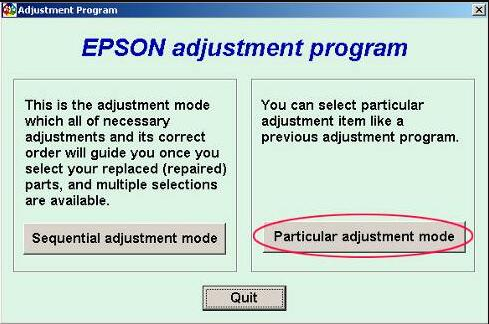
Epson L121 Adjustment Program is one of the most useful utilities for users who suddenly find their printer blocked by a service warning, waste ink pad counter issue, or maintenance-related printing stop. When an Epson L121 printer refuses to print even though the hardware still powers on normally, the issue is often not a dead machine. In many cases, the printer has reached an internal protection limit and needs a proper adjustment utility to continue working.
That is why so many users search for the Epson L121 adjustment program instead of buying a new printer immediately. The goal is simple: identify whether the printer is locked by a waste ink counter, use the correct service utility, perform the reset process carefully, and return the machine to normal printing. Still, not every website explains this clearly. Some pages exaggerate what the tool can do, while others skip the safety side entirely.
This guide is written for real users who want a clear and practical explanation. It covers what the Epson L121 adjustment program does, when to use it, how to install it, how to reset the printer step by step, and what to do if something goes wrong. The approach here is technical, but still readable, so beginners and experienced users can both follow it.
What Is the Epson L121 Adjustment Program?
The Epson L121 adjustment program is a service utility used to communicate with the printer’s internal maintenance settings. It is commonly used to check or reset the waste ink pad counter, which is one of the main reasons many Epson printers stop printing after long use.
Inside the printer, an internal counter keeps track of ink discharged during cleaning cycles, nozzle maintenance, and related processes. Once that count reaches a preset limit, the printer may show a service warning and refuse further printing. This happens as a protective measure, not because the printer has completely failed.
The adjustment program allows users or technicians to access those maintenance values. In many cases, the tool is used to reset the waste ink counter after service. Depending on the utility version, it may also include additional maintenance functions such as EEPROM-related checks, initialization options, or printer status access.
Why People Search for Epson L121 Adjustment Program
Most visitors do not search this keyword casually. They usually arrive after their printer stops at the worst possible moment. Common reasons include:
The printer suddenly stops printing and shows a service-related message
The waste ink pad counter has reached its limit
The user wants to reset the printer after maintenance
The printer appears normal, but all print jobs are blocked
The user needs a model-specific reset utility instead of a generic driver
In these situations, users are usually looking for a proper Epson L121 adjustment program download, not general troubleshooting tips. They want a direct solution that fits their printer model and addresses the counter lock safely.
Epson L121 Adjustment Program vs Printer Driver
Many users confuse an adjustment program with a normal printer driver. They are not the same.
Printer Driver
A driver allows the computer to send print commands to the printer. Without the driver, normal printing may not work correctly.
Adjustment Program
An adjustment program is a technical utility used for maintenance and service tasks. It is not meant for daily printing. Instead, it helps communicate with protected internal settings such as the waste ink counter.
This difference matters because a blocked waste ink counter will not be fixed by reinstalling the standard printer driver. If the internal counter has reached its limit, the Epson L121 adjustment program is often the relevant tool.
When Should You Use the Epson L121 Adjustment Program?
You should consider using the Epson L121 adjustment program when the symptoms match a maintenance lock rather than a hardware failure.
Typical cases include:
“Service required” style warnings
Waste ink pad full or near-limit counter messages
Printer detected by the PC but unable to complete print jobs
Maintenance lock after extensive cleaning cycles
You should not treat the tool as a universal repair solution. It is not designed to fix everything. If the printer has a carriage jam, paper feed damage, power issue, scanner problem, or board failure, the adjustment program will not repair those hardware faults.
Important Safety Note Before Resetting
A high-quality support article should always explain this part honestly. Resetting the waste ink counter is not the same as physically cleaning or replacing the waste ink pads inside the printer. The software side may be cleared, but the absorbed waste ink still exists physically inside the machine.
So while the Epson L121 adjustment program can restore printer operation when the counter is the main problem, it should be used responsibly. If a printer has already handled heavy use for a long time, ignoring the physical waste ink system can lead to leakage or internal mess later.
That means the smart approach is this: use the utility when the problem matches the counter lock, but do not pretend software alone replaces every maintenance need.
How to Download Epson L121 Adjustment Program Safely
People searching for reset utilities often end up on random download pages. That creates risk. A clean and trustworthy download page should help users avoid the wrong file and understand what they are using.
Check the Model Name Carefully
Make sure the file is clearly meant for the Epson L121 or a trusted compatible package that specifically includes L121 support. Do not assume that a file for a similar Epson model will always work correctly.
Extract the Archive First
If the file is compressed in ZIP or RAR format, extract it fully into a normal folder before launching it. Running service tools from inside an archive often causes errors.
Use a Windows PC If Required
Many adjustment programs are packaged for Windows environments. If the utility is Windows-only, say so clearly on the download page to reduce confusion for Mac users.
Scan Before Running
Any downloaded utility should be checked before use. A cautious user is more likely to trust your site if you encourage verification instead of telling them to click through every warning.
How to Use Epson L121 Adjustment Program Step by Step
Below is a practical step-by-step process for using the Epson L121 adjustment program. These steps are written in a clean workflow so users can follow them without guessing.
Step 1: Turn On the Printer
Make sure the Epson L121 is powered on and in a stable state. If there is a blinking warning pattern, note it before starting.
Step 2: Connect the Printer by USB
Use a direct USB connection between the computer and the printer. Avoid USB hubs if possible. A direct connection helps the service utility detect the printer more reliably.
Step 3: Close Other Printer Software
Exit any Epson monitor tools, print queue windows, or background printer software that may interfere with the communication process.
Step 4: Open the Adjustment Program
Run the Epson L121 adjustment program as administrator. This reduces permission problems and improves the chance of proper device communication.
Step 5: Select the Correct Printer Model
Inside the software, choose the Epson L121 model from the supported list. If the tool groups models by series, confirm that the L121 is included.
Step 6: Enter the Maintenance or Particular Adjustment Mode
Most Epson service utilities include a menu area for maintenance-related functions. This is where waste ink pad counter operations are usually located.
Step 7: Open the Waste Ink Pad Counter Section
Look for menu names such as:
Waste Ink Pad Counter
Main Pad Counter
Protection Counter
Check / Initialization
Step 8: Read the Counter Value
If the tool supports checking before resetting, do that first. It confirms that the utility is properly communicating with the printer.
Step 9: Reset the Counter
Choose the reset option and complete the process as instructed by the tool. After that, restart the printer if prompted. Then run a small test print to confirm whether the lock has cleared.
What Problems Can the Epson L121 Adjustment Program Help With?
The utility is mainly useful for maintenance-related lock conditions. It may help with:
Waste ink pad counter overflow warnings
Printer blocked by internal maintenance limit
Service-required conditions related to counter status
Checking internal maintenance values before service
It may not help with:
Printhead electrical damage
Broken paper feed rollers
Carriage movement errors caused by obstruction
Power supply faults
USB cable or motherboard communication defects
Troubleshooting Epson L121 Adjustment Program Issues
The Program Does Not Open
This can happen if files were not extracted properly or the system blocks execution. Extract the package fully and run it as administrator.
The Printer Is Not Detected
Check the USB cable, switch to another USB port, restart both devices, and close any software that may already be using the printer connection.
The Reset Option Is Available but Fails
This may happen if the wrong printer model is selected, the communication is unstable, or the utility version is not correct for the device.
The Printer Still Shows an Error After Reset
If the printer remains blocked, the issue may be unrelated to the waste ink counter. It may also indicate that another maintenance item or hardware problem is involved.
The Printer Works but Print Quality Is Poor
The adjustment program does not automatically fix nozzle clogs or ink flow issues unless it includes those functions. In that case, perform a nozzle check and use cleaning only when necessary.
Best Practices After Resetting Epson L121
Once the Epson L121 adjustment program has done its job, users should not immediately forget maintenance. A few smart habits can help extend the printer’s life.
Use the correct ink system and proper refill practices
Watch for signs of actual waste ink buildup over time
Keep a backup of the utility instructions for future maintenance
These small habits matter because many waste ink counter problems return faster when the printer is repeatedly forced through unnecessary cleaning cycles.
FAQ About Epson L121 Adjustment Program
Is Epson L121 Adjustment Program free?
That depends on the source. Some sites offer direct download packages, while others provide access instructions or paid reset options. Always explain clearly what the visitor is getting.
Can I use Epson L121 adjustment program on other Epson models?
Only if the package specifically supports those models. Using a random tool on the wrong printer is not a good idea.
Does this tool permanently fix the waste ink pad issue?
It resets the counter side of the problem. It does not physically replace or clean the waste ink pads inside the printer.
Why is my Epson L121 still blinking after reset?
The printer may have another issue, the reset may not have completed correctly, or the problem may not be waste-ink-related at all.
Do I need internet to use the program?
Usually, the utility itself works locally after download. The important part is a stable USB connection between the printer and the PC.
Can beginners use Epson L121 adjustment program?
Yes, if the guide is clear and the user follows the steps carefully. The process is much easier when the instructions match the exact model.
Final Thoughts
Epson L121 Adjustment Program is an essential utility for users facing waste ink counter problems, maintenance lock errors, or printer stops that are not caused by obvious hardware failure. It fills a specific role: restoring access when the printer has reached its internal service threshold.
The most helpful support pages do not overpromise. They explain exactly what the tool is, what it can do, what it cannot do, and how to use it safely. That approach builds trust with users and also improves the quality of the page for long-term ranking.
If your website offers the Epson L121 adjustment program download, the page should focus on clarity, safe installation, realistic reset guidance, and honest troubleshooting advice. That is what real users want, and it is also what makes content more useful, more search-friendly, and more AdSense-safe over time.