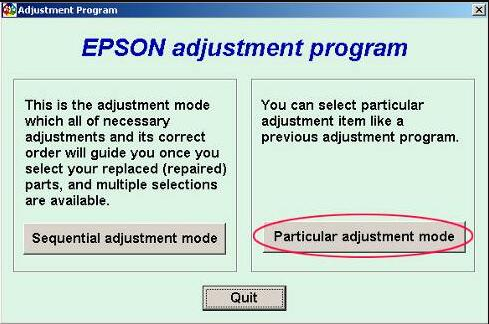
If your Epson L455 has suddenly stopped printing and displays “Service Required”, you’re not alone. This issue often appears when the printer’s waste ink counter reaches its limit, or when internal maintenance protections activate.
In this guide, you’ll learn how the Epson L455 Adjustment Program works, how to safely perform a reset, whether online resetter downloads are safe, and how to maintain your printer for long-term use.
Understanding Epson L455 Maintenance & Error System
Modern Epson printers—including the L455—use an internal maintenance system that tracks waste ink, print volume, and firmware safety counters. When these limits are reached, the printer triggers protective errors.
Why the Epson L455 Shows “Service Required” Several factors cause this error:
Waste Ink Pad Saturation
During cleaning and priming, ink is flushed into internal pads. Over time, the pads saturate.
Counter Overflow
The printer tracks every clean and print cycle. Once the waste ink counter reaches a maximum limit, the printer locks.
Firmware-Triggered Lock
Newer firmware versions block printing to prevent internal ink overflow.
Long-Term Usage Patterns
Heavy users see this error sooner due to frequent cleaning cycles.
Role of the Epson L455 Adjustment Program
The Epson L455 Adjustment Program is a specialized maintenance utility engineers use to fix locked printers by resetting waste ink counters.
How It Helps
- Resets waste ink counter
- Performs internal diagnostics
- Runs advanced cleaning and alignment
- Reads important system data
Epson L455 Adjustment Program – Full Overview
The Epson L455 Adjustment Program is one of the most effective tools for fixing service errors—when used correctly.
What the Adjustment Program Can Do
• Reset Protection Counters
Clears waste ink limits and restores functionality.
• EEPROM Data Reading/Writing
Helps check printer memory values during diagnosis.
• Printhead Cleaning & Ink Charge
Runs deep-cleaning cycles safely.
• System-Level Calibration
Improves print quality and fixes alignment issues.
When You Should Use the Adjustment Program
Use the tool when:
- Waste ink pad full notification appears
- “Service required” error stops printing
- Printer is locked even after cleaning
- No improvement after repeated cleaning cycles
Important Precautions Before Using the Tool
- Backup your printer settings
- Make sure the tool matches the model (L455 only)
- Avoid cracked or modified EXE files
- Check if your waste ink pad is physically saturated
Epson L455 Resetter Download – What Users Need to Know
A resetter tool is necessary when your printer is locked, but not all downloads are safe.
What the Resetter Tool Actually Does
- Resets waste ink counters
- Clears service-required errors
- Restores printing functions
- Provides temporary or long-term fixes depending on pad condition
Risks of Downloading Unverified Resetters
Downloading unknown files can be dangerous:
- Virus-infected EXE files
- Broken or outdated reset versions
- Fake tools that don’t reset anything
- System crashes or port conflicts
Safe Download Checklist
Before downloading any resetter, ensure:
- File name matches standard Epson structures
- Size looks normal (not 100 KB “fake EXEs”)
- Download source is trusted
- You run a full antivirus scan
- You avoid cracked/patched versions
Best Safe Alternatives to Risky Downloads
- Official Epson utilities
- Authorized service center tools
- Verified paid reset utilities
- Manual waste ink maintenance
Epson L455 Resetter Google Drive – Is It Reliable?
Many users search “Epson L455 resetter Google Drive” thinking they’ll find easy downloads. But this can be risky.
Why Users Search for Google Drive Links
- Simple interface
- No installer
- Old versions archived by users
- Quick sharing
Safety Concerns About Google Drive Resetters
Google Drive is not automatically safe:
- Anyone can upload files
- No official verification
- High risk of modified EXEs
- Wrong model tools commonly uploaded
How to Verify a Google Drive Resetter File
- Check uploader identity
- Look at upload/modified date
- Confirm file name
- Scan with VirusTotal
- Avoid anonymous uploaders
How to Use the Epson L455 Adjustment Program Safely
A beginner-friendly practical guide.
Before You Begin
- Install Epson L455 drivers
- Use a working USB cable
- Close all Epson programs
- Disable antivirus temporarily (if needed)
Step-by-Step Reset Procedure
- Launch the Adjustment Program
- Select Epson L455 from model list
- Choose Waste Ink Pad Counter
- Click Check
- Click Initialize
- Wait for completion
- Restart your printer
After Reset Maintenance
- Clean or replace ink pads
- Reset cleaning cycles
- Print a nozzle test to confirm alignment
Waste Ink Pad Maintenance for Epson L455
Resetting the counter does not empty the pad. Maintenance is essential.
How to Know If Pads Are Physically Full
- Wet ink marks underneath
- Repeated service-required errors
- Ink spreading inside the base
Replacement Options
Professional Service Center Replacement
- Safe and warranty-compliant
- Best for severely saturated pads
DIY Waste Ink Pad Cleaning
Tools needed: gloves, tissues, cotton pads, isopropyl alcohol
Steps:
- Open printer bottom
- Remove pads
- Clean or replace
- Let completely dry
Safety Note: Use gloves to avoid ink stains.
External Waste Ink Tank Setup (Optional)
An external tank helps prevent future saturation:
- Simple tubing installation
- Long-term protection
- Reduces internal overflow issues
Troubleshooting Common L455 Resetter & Adjustment Program Issues Program Not Detecting Printer
Causes:
- Wrong USB port
- Driver issues
- Bad cable
Fix: Reinstall drivers and reconnect USB.
“Communication Error”
- Firewall blocking program
- Epson background processes running
- Damaged cable
Reset Completed But Error Remains
- Physical pads totally full
- Wrong tool version
- Firmware block not cleared
Practical Real-World Scenarios
Reset Worked but Error Came Back
Issue: Pads physically full
Fix: Replace or clean pads.
Google Drive Resetter Contained Virus
Issue: Unverified EXE
Fix: Use trusted sources only.
Adjustment Program Worked but Ink Overflowed
Issue: Pads saturated
Fix: External tank and pad cleaning needed.
Printer Not Detected via USB
Fix: Check drivers, ports, and disable antivirus.
Frequently Asked Questions
Q1: Is the Epson L455 Adjustment Program safe to use?
Yes, if downloaded from a trusted and verified source.
Q2: Where can I find a safe Epson L455 resetter download?
Use official tools or trusted websites, not random file-sharing links.
Q3: Are Google Drive resetter files safe?
Not always. Always verify before downloading.
Q4: Why does my Epson L455 still show “Service Required” after a reset?
Your waste ink pads may be physically full.
Q5: Can I reset the Epson L455 without software?
Not for waste ink counter resets—software is required.
Q6: How often should I replace the waste ink pad?
Every 1–2 years depending on usage.
Q7: Is there a 100% guaranteed working reset tool?
Only verified adjustment programs or official service tools.
Safely Maintaining Your Epson L455 for Long-Term Use
Summary of Key Points
- Use the Epson L455 Adjustment Program carefully
- Avoid risky downloads
- Maintain waste ink pads regularly
- Troubleshoot issues promptly
Best Practices for Safe Printer Operation
- Keep firmware updated
- Avoid cracked software
- Run routine cleaning cycles
Long-Term Care Recommendations
- Install an external waste ink tank
- Schedule periodic maintenance
- Use high-quality ink for better lifespan