If your Epson Stylus C78 printer is showing blinking lights, refusing to print, or displaying a service-related warning, the issue may be linked to the waste ink pad counter. In many cases, users search for the Epson Stylus C78 Adjustment Program when the printer stops working because it believes internal maintenance is required.
This guide explains what the Epson Stylus C78 Adjustment Program does, why the error appears, how to reset the counter carefully, and what to check if the warning remains after the reset. The goal is not only to help you run the utility, but also to help you understand the problem correctly before making changes to the printer.
Important: Resetting the waste ink pad counter may restore printer access, but it does not physically replace the ink pads. If the printer has been heavily used, maintenance may still be required.
What Is the Epson Stylus C78 Adjustment Program?
The Epson Stylus C78 Adjustment Program is a model-specific maintenance utility used to reset the internal waste ink pad counter. Epson printers monitor cleaning cycles and ink usage through an internal protection system. When the estimated waste ink level reaches a preset limit, the printer may stop printing and show a service warning.
That is when many users begin looking for the Epson Stylus C78 reset utility, especially if the printer appears to be locked even though no major hardware part seems broken.
Why Does the Epson Stylus C78 Show a Service Error?
The Epson Stylus C78 may show a maintenance or service error when the printer believes the waste ink pads are reaching their limit. This does not always mean the printer is permanently damaged. In many cases, it means the internal counter has reached its maximum allowed value.
Common signs include:
red or alternating blinking lights
printer not responding
service required warning
end of service life type message
waste ink pad related error
What Is the Waste Ink Pad Counter?
Inside the printer, absorbent pads collect excess ink from print head cleaning and other maintenance cycles. The printer does not directly measure the physical condition of those pads. Instead, it uses an internal counter to estimate when service may be needed.
Once that counter reaches its limit, the printer can block normal operation until the counter is reset. That is why users often search for phrases such as:
Epson Stylus C78 waste ink pad reset
Epson Stylus C78 service required fix
Epson Stylus C78 blinking lights solution
Epson Stylus C78 adjustment program download
What the Epson Stylus C78 Reset Utility Can Do
The reset utility is commonly used to:
clear the waste ink pad counter
remove service-related lock messages
stop blinking light warnings caused by the counter
restore normal printer access
help the printer print again after a maintenance lock
However, the software only resets the internal counter. It does not repair unrelated hardware problems such as carriage faults, paper feed issues, mainboard problems, or severe ink leakage.
When Should You Use the Epson Stylus C78 Adjustment Program?
You may consider using the program if your Epson Stylus C78:
powers on but refuses to print
shows a maintenance-related message
has blinking error lights
mentions service life or internal parts warning
appears locked because of a waste ink pad counter issue
If the problem is caused by a paper jam, USB communication issue, or a different hardware fault, the adjustment program may not solve it.
How to Reset Epson Stylus C78 Waste Ink Pad Counter
Follow the process carefully. Using the correct model-specific tool is important.
Download the correct Epson Stylus C78 adjustment utility.
Extract the files if the download comes in a ZIP archive.
Run the program as administrator on your computer.
Select the printer model and connected port correctly.
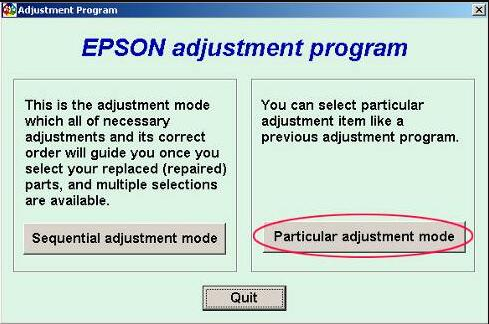
Open Particular Adjustment Mode if the program uses that menu structure.
Select Waste Ink Pad Counter from the list of maintenance options.
Check the current counter value before resetting it.
Initialize or reset the counter using the available command.
Restart the printer after the process finishes.
If the process completes successfully, the warning may disappear and the printer may return to normal operation.
Common Epson Stylus C78 Adjustment Program Errors and Fixes
Printer Not Detected
If the software does not detect the Epson Stylus C78, the issue may be related to the USB connection, printer driver, or port selection.
Try this:
connect the printer directly to the computer
replace the USB cable
try a different USB port
reinstall the printer driver
restart both the printer and the computer
Communication Error
A communication error usually appears when the reset utility cannot communicate properly with the printer.
Try this:
turn the printer off and on again
disconnect and reconnect the cable
close other Epson-related software
make sure the correct printer port is selected
Reset Completed but the Error Still Appears
If the reset appears to finish but the service warning remains, the problem may be caused by a wrong utility version, an incomplete process, or a real maintenance issue.
Try this:
confirm the utility matches Epson Stylus C78 exactly
repeat the process carefully once
check the waste ink area for visible maintenance issues
seek technician support if the error continues
Is the Epson Stylus C78 Adjustment Program Safe?
It can be safe when used correctly with the exact printer model and a trustworthy source. Before opening any reset utility, it is wise to scan files, avoid suspicious installers, and read the instructions carefully.
A useful guide should explain both the benefits and the limitations of the reset process. It should not promise unrealistic results or suggest that every printer fault can be fixed by resetting the counter.
What to Check After Resetting the Printer
Even if the counter reset works, it is still smart to inspect the printer if it has been used for a long time. A reset can unlock the printer, but long-term maintenance may still matter.
After resetting, consider these checks:
look for signs of excess ink inside the printer
keep the printer on a stable surface
monitor whether the error returns quickly
inspect the waste ink area if the printer has heavy prior use
Final Thoughts
The Epson Stylus C78 Adjustment Program can be useful when the printer is locked because of a waste ink pad counter warning or service-related protection message. For many users, the issue is not total printer failure, but a maintenance counter that needs to be reset correctly.
Still, it is important to use the proper tool, follow the reset steps carefully, and understand that resetting the printer does not always replace physical servicing. If your Epson Stylus C78 shows blinking lights or a service message, checking the waste ink pad counter is often the most logical starting point.
Frequently Asked Questions
What is the Epson Stylus C78 Adjustment Program?
It is a maintenance utility used to reset the printer’s internal waste ink pad counter when it reaches its service limit.
Why is my Epson Stylus C78 showing blinking lights?
Blinking lights often indicate a maintenance-related issue, especially a waste ink pad counter warning or protection counter lock.
Does the reset utility permanently fix the printer?
Not always. It can remove the internal counter lock, but it does not physically replace the waste ink pads or fix unrelated hardware faults.
Can I use any Epson reset tool for Stylus C78?
No. It is best to use a reset utility that matches the Epson Stylus C78 model exactly.
What should I do if the error comes back after reset?
If the warning returns, the printer may need additional inspection or physical maintenance. A counter reset alone may not be enough in every case.