Epson Stylus SX115 Adjustment Program is a free reset utility used to fix Service Required errors, waste ink pad counter overflow warnings, blinking light problems, and end-of-service-life messages on Epson Stylus SX115 printers.
If your Epson Stylus SX115 printer has stopped printing and displays maintenance-related warnings, this adjustment program can help restore printer functionality by resetting the internal waste ink pad counter.
Learn more about Why Need Reset Epson Printer and How to Reset Epson Printer.
Why Need Epson Stylus SX115 Adjustment Program?
Epson printers use an internal maintenance protection system that monitors waste ink generated during print head cleaning and maintenance cycles. Once the printer reaches its predefined protection limit, printing may stop and warning messages may appear.
- Your printer requires service.
- Parts inside your printer are at the end of their service life.
- Waste ink pad counter overflow.
- Service Required.
- Printer requires maintenance.
- Blinking red light error.
When these warnings appear, the Epson Stylus SX115 Adjustment Program can be used to reset the maintenance counter and restore printer functionality.
Download Epson Stylus SX115 Adjustment Program
Download the Epson Stylus SX115 Resetter Tool using the button below. Extract the files and follow the instructions to restore printer functionality.
ZIP File Password: thanks
Supported Error Messages
- Service Required
- Printer requires support
- Waste ink pad counter overflow
- Parts inside your printer are at the end of their service life
- Printer maintenance required
- Blinking red lights
- End of service life warning
Features of Epson Stylus SX115 Resetter Tool
- Reset Waste Ink Pad Counter
- Fix Service Required Errors
- Remove Blinking Light Warnings
- Restore Printer Functionality
- Maintenance Counter Reset
- EEPROM Functions
- Printer Maintenance Tools
- Diagnostic Functions
Supported Operating Systems
- Windows 11 (32-bit / 64-bit)
- Windows 10 (32-bit / 64-bit)
- Windows 8 / 8.1
- Windows 7
- Windows Vista
- Windows XP
How to Reset Epson Stylus SX115 Printer
- Download the Epson Stylus SX115 Adjustment Program.
- Extract the ZIP or RAR archive.
- Open the extracted folder.
- Run AdjProg.exe as Administrator.
- Click Select and choose Epson Stylus SX115.
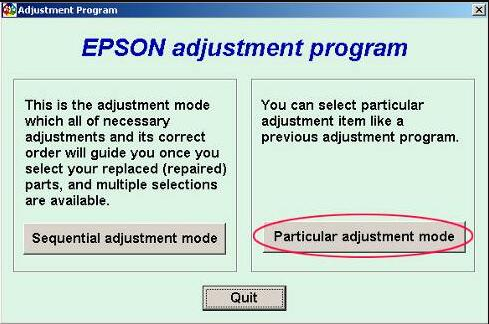
- Click Particular Adjustment Mode.
- Select Waste Ink Pad Counter.
- Click Check.
- Select Main Pad Counter.
- Click Initialize.
- Turn off the printer.
- Restart the printer.
After restarting, the Service Required warning should disappear and the printer should function normally again.
Important Notes Before Resetting
- Run the program as Administrator.
- Use a direct USB connection.
- Temporarily disable antivirus software if the utility does not open.
- Select the correct printer model before performing any reset.
- Restart the printer after completing the reset process.
Frequently Asked Questions
Can Epson Stylus SX115 Resetter fix blinking lights?
Yes. If the blinking lights are caused by the waste ink counter reaching its limit, the reset utility can clear the error.
What is AdjProg.exe?
AdjProg.exe is the main executable file used to launch the Epson Adjustment Program.
Does resetting replace the waste ink pad?
No. Resetting only clears the software counter. Physical maintenance may still be required if the waste ink pad becomes saturated.
Related Epson Adjustment Programs
- Epson Adjustment Program Master Guide
- How to Use Epson Adjustment Program
- Epson Stylus SX125 Adjustment Program
- Epson Stylus SX130 Adjustment Program
- Epson Stylus SX235W Adjustment Program
Search Terms
#Epson Stylus SX115 Adjustment Program
#Epson Stylus SX115 Resetter
#Epson Stylus SX115 Waste Ink Pad Counter Reset
#Epson Stylus SX115 Error Solution
#Epson Stylus SX115 Service Required Fix
Conclusion
The Epson Stylus SX115 Adjustment Program is a useful reset utility for fixing Service Required errors, waste ink pad counter overflow warnings, and blinking light problems. Follow the instructions carefully to restore printer functionality and continue printing normally.