Epson Stylus DX4000 Resetter: How to Reset Waste Ink Pad Error Safely
Last Updated: March 29, 2026
When an Epson Stylus DX4000 stops printing and starts showing a service-related error, many users assume the printer is completely broken. In reality, the problem is often linked to the waste ink pad counter, which is why so many people search for an Epson Stylus DX4000 resetter to unlock the printer.
This page explains what the resetter does, why the error appears, how to reset the printer safely, and what to do if the message does not disappear after the process. Instead of focusing only on the download side, this guide helps you understand the reset process properly before using any tool.
Note: A resetter can clear the internal protection counter, but it does not clean or replace the physical waste ink pads inside the printer. If the printer has heavy ink buildup, servicing may still be needed.
What Is the Epson Stylus DX4000 Resetter?
The Epson Stylus DX4000 resetter is a utility used to reset the printer’s internal waste ink pad counter. Epson printers keep track of cleaning cycles and maintenance-related ink usage. Once the counter reaches its limit, the printer may stop working and display a service warning even if the printer still powers on normally.
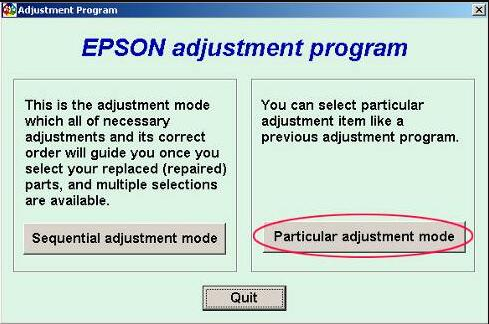
That is why this type of software is often called a reset utility, adjustment program, or waste ink pad reset tool for the Epson Stylus DX4000.
Why the Epson Stylus DX4000 Stops Printing
The printer may stop responding when it believes the waste ink system has reached its safe operating limit. This protection system is built to prevent possible overflow or maintenance neglect. The issue is usually connected to internal ink collection rather than a paper jam or cartridge problem.
Users often notice one or more of these signs:
printer powers on but does not print
service required warning appears
indicator lights flash repeatedly
the printer seems locked after cleaning cycles
normal printing functions stop without a major hardware fault
Understanding the Waste Ink Pad Counter
The printer uses absorbent pads to collect excess ink during head cleaning and maintenance routines. It then estimates the fill level through an internal counter. Once the estimated level reaches a preset point, the printer may block printing until the counter is reset.
A resetter is usually worth trying when the printer shows a maintenance-related lock and the symptoms clearly point to a waste ink counter issue. It is less useful when the printer has mechanical noise, carriage jams, paper feed failure, or unrelated electrical faults.
You should first confirm that the issue matches a counter-related warning instead of guessing based on general print failure.
How to Use Epson Stylus DX4000 Resetter
Use the process carefully and make sure the tool is intended for the exact printer model.
Download a resetter or adjustment utility made for Epson Stylus DX4000.
Extract the downloaded archive if needed.
Connect the printer directly to the computer with a stable USB connection.
Run the program with administrator permission.
Select the correct printer model and available port.
Open the maintenance or adjustment section.
Choose the waste ink pad counter option.
Check the current counter value.
Reset or initialize the counter.
Turn the printer off and on again after the process completes.
If the reset is successful, the service lock may be removed and the printer may return to normal operation.
Common Epson Stylus DX4000 Resetter Problems
The Printer Is Not Recognized
If the reset software cannot find the printer, the cause is often connection-related rather than software failure.
Try these steps:
connect the printer directly instead of using a USB hub
switch to another USB port
replace the cable if the connection feels unstable
install or reinstall the Epson printer driver
restart the computer and printer
The Program Opens but Reset Does Not Start
This can happen if the selected port is wrong, the software version is not fully compatible, or another background program is interfering with communication.
Try these steps:
close other Epson-related tools
run the program as administrator
double-check the selected printer port
reopen the utility after restarting the printer
The Error Remains After Reset
Sometimes the reset appears to complete, but the printer still shows the same warning. That usually points to one of three things: wrong model utility, incomplete reset flow, or a real maintenance issue inside the printer.
Try these steps:
make sure the resetter matches the Epson Stylus DX4000 exactly
repeat the process once carefully
inspect the printer for signs of heavy ink saturation
seek servicing if the same error returns quickly
Is the Epson Stylus DX4000 Resetter Safe to Use?
It can be safe when you use the correct model-specific utility and follow the reset steps carefully. However, users should be careful with unknown files, suspicious installers, and any tool that promises unrealistic results. A trustworthy reset guide should explain the limits of the process instead of claiming that every error can be fixed instantly.
Resetting vs Servicing: What Is the Difference?
A resetter clears the internal count. Servicing deals with the actual physical condition of the printer. If the printer has been used heavily for a long time, the waste ink area may still need cleaning or maintenance even after a successful reset.
That is why a reset can be a practical solution for access restoration, but not always the final maintenance step.
How to Reduce Waste Ink Pad Errors in the Future
You cannot fully avoid internal ink collection, but you can reduce unnecessary cleaning cycles and keep the printer in better working condition.
avoid repeated head cleaning unless needed
use the printer regularly to prevent clog buildup
keep the printer on a level surface
address print quality issues early instead of running many cleaning cycles in a row
Final Thoughts
The Epson Stylus DX4000 resetter is mainly used to clear the waste ink pad counter when the printer is blocked by a service warning. For many DX4000 users, the issue is not a dead printer but a locked protection counter that can often be reset correctly with the proper tool.
Still, a good reset process should always be approached carefully. Use the right utility, confirm the exact model, and remember that a reset solves the counter side of the problem, not always the physical maintenance side.
Frequently Asked Questions
What does the Epson Stylus DX4000 resetter do?
It resets the internal waste ink pad counter so the printer can continue working after a maintenance-related lock.
Why is my Epson Stylus DX4000 showing a service warning?
The warning usually appears when the printer estimates that the waste ink pad counter has reached its limit.
Can a resetter fix every Epson DX4000 problem?
No. It helps with waste ink counter issues, but it does not repair hardware damage, paper feed faults, or unrelated printer errors.
Is the Epson Stylus DX4000 resetter the same as an adjustment program?
In many cases, yes. Both terms are commonly used for utilities that perform maintenance-related reset functions.
What if the same error comes back after resetting?
If the warning returns quickly, the printer may need additional maintenance or servicing beyond a simple counter reset.