How to Fix Epson Printer E11 Error and Reset Ink Pad is a question many Epson users search for after the printer suddenly stops and shows a service warning. The message often appears without much explanation, which makes people think the printer is permanently damaged. In many cases, that is not true. The problem is usually related to the waste ink counter reaching its limit, but the right fix depends on whether the printer only needs a counter reset or also needs physical maintenance.
This guide explains the issue in a technical but practical way. If your Epson printer shows E11, you need to understand what the error means, what not to do, and how to handle the ink pad reset process more safely.
What Does Epson Printer E11 Error Mean?
E11 generally points to a waste ink pad service condition. Epson printers collect excess ink during printhead cleaning, priming, and maintenance cycles. That extra ink is absorbed into internal pads. Over time, the printer estimates that those pads are full or near their safe limit and then blocks normal printing.
In simple terms, the printer is not only complaining about software. It is warning that the internal waste ink system has reached its programmed threshold.
Why the E11 Error Appears
The E11 message usually appears after long-term use, repeated cleaning cycles, or heavy printing. It can also show up sooner if the printer has been cleaned frequently to fix clogged nozzles.
Common triggers include:
- Repeated printhead cleaning cycles
- Heavy daily printing volume
- Long-term use without service
- Waste ink counter reaching its internal limit
- Maintenance history stored in the printer firmware
This is why simply restarting the printer rarely solves the problem for more than a moment.
How to Fix Epson Printer E11 Error and Reset Ink Pad Properly
1. Confirm the Exact Error Message
Before doing anything else, check the screen message, blinking light pattern, or status monitor text. Some Epson models display E11, while others show a longer message such as “parts inside your printer are at the end of their service life” or “ink pad needs service.”
That distinction matters because some models use a maintenance box instead of the same internal pad arrangement, and the repair path can differ.
2. Turn the Printer Off and Inspect for Secondary Problems
Power off the printer and check for paper scraps, carriage obstruction, or another obvious mechanical issue. E11 is usually about the waste ink system, but a second fault can confuse the diagnosis.
This step is quick, and it prevents users from blaming everything on the pad counter when there may also be a paper path or sensor problem.
3. Understand the Difference Between Resetting and Repairing
This is the part many users miss. Resetting the waste ink counter and servicing the actual ink pad are not the same thing.
A counter reset tells the printer to clear its internal estimate.
A physical service deals with the ink that has already been absorbed by the pad.
If you only reset the counter and ignore a saturated waste ink pad, the printer may continue to work for a while, but ink overflow risk can increase later. That is why the best practice is to match the reset with proper pad cleaning, replacement, or external waste ink maintenance where appropriate for the model.
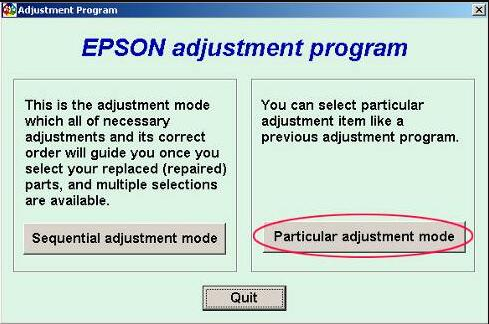
4. Use the Correct Model-Specific Epson Adjustment Method
If your printer model supports a service utility or adjustment procedure, use the correct model-specific method only. Do not use random reset tools made for a different Epson printer. A mismatched utility may fail, freeze, or create new errors.
When using a model-matched adjustment tool, the usual process is:
- Connect the printer securely by USB if required by the tool.
- Open the correct service or adjustment utility for your exact model.
- Select the maintenance or waste ink counter option.
- Read the current counter value if the software allows it.
- Perform the waste ink counter reset.
- Power the printer off, then back on.
- Print a test page and confirm the E11 message is gone.
If the error remains after a correct reset attempt, stop and recheck the model, driver communication, and physical waste ink condition.
5. Service the Waste Ink Pad or Maintenance Area
If the printer has truly absorbed a lot of waste ink, a counter reset alone is not the full answer. Depending on the model, the maintenance area may need one of the following:
- Waste ink pad replacement
- Pad cleaning and drying where service procedures allow it
- Maintenance box replacement on models that use one
- Inspection of drain tubes or external waste ink routing on modified setups
Users often focus only on unlocking the printer, but the safer long-term fix is reducing the chance of future overflow.
6. Restart and Run a Nozzle Check
After resetting and servicing the waste ink system, restart the printer and run a nozzle check. This confirms that the printer is back in normal working mode and that no secondary print quality issue has appeared.
If the printer starts but prints poorly, that is usually a separate maintenance issue rather than part of E11 itself.
7. Avoid Repeating the Problem Too Quickly
Once the printer is working again, avoid unnecessary printhead cleaning cycles. Excessive cleaning is one of the fastest ways to fill the waste ink system again.
Instead of repeated cleaning, try a structured approach:
- Run a nozzle check first
- Clean only when gaps appear
- Use the printer regularly to reduce drying
- Keep the printer powered down properly, not by unplugging it suddenly
- Use suitable ink and maintenance procedures for the model
When a Reset Is Enough and When It Is Not
Some users get lucky with a clean counter reset and months of normal printing. Others reset the counter, only to see ink leakage or a quick return of the warning. The difference usually comes down to the actual physical condition of the waste ink area.
A reset may be enough if the printer is not heavily used and the internal pad is not truly saturated.
A reset is not the full repair if:
- There is visible waste ink buildup
- The printer has been used heavily for years
- The bottom area smells strongly of ink or feels damp
- The warning returns again too soon
- You notice leakage, smearing, or internal mess around the parking area
Troubleshooting Epson E11 Reset Problems
The reset tool cannot detect the printer
- Reconnect the USB cable
- Install the correct driver
- Restart both printer and PC
- Close other Epson utilities before retrying
The E11 error stays after reset
- Confirm the tool matches the exact printer model
- Make sure the reset process completed fully
- Check whether the printer has another hardware fault
- Inspect whether the pad or maintenance system still needs physical service
The printer resets but ink leaks later
- Do not keep printing heavily
- Inspect the waste ink area immediately
- Replace or service the pad system properly
The printer shows a different warning after E11
- Read the new code carefully
- Do not assume every new problem is still waste-ink related
- Troubleshoot the new message separately
Helpful External Resources
- Epson Support — official support, manuals, and product-specific help.
- Microsoft Support — useful if the printer is not detected correctly in Windows.
- Inkjet Printing Overview — background information on how inkjet printers handle ink and maintenance cycles.
FAQ
What is Epson E11 error?
E11 usually means the printer has reached a waste ink pad service threshold. The printer stops to prevent continued operation without maintenance.
Can I reset Epson E11 without replacing the ink pad?
You can reset the counter on some models, but that does not physically remove or replace the absorbed waste ink. For long-term reliability, physical servicing is the better approach when the pad is actually saturated.
Will resetting the waste ink counter damage the printer?
The reset itself does not usually damage the printer if the correct model-specific method is used. The bigger risk is resetting the counter while ignoring an ink pad that is already overloaded.
Why did the E11 error come back after reset?
This can happen if the wrong tool was used, the reset did not complete correctly, or the printer still has a physical waste ink issue that was never serviced.
Is E11 the same on every Epson printer?
No. The meaning is similar across many models, but the exact wording, service path, and maintenance design can vary by printer series.
Should I keep printing after resetting the counter?
Only if you are confident the waste ink system is still in safe condition. If there are signs of saturation or leakage, physical service should come first.
Conclusion
How to Fix Epson Printer E11 Error and Reset Ink Pad is not just about clearing a code. The real solution is understanding that E11 is a maintenance warning tied to the waste ink system. In many cases, the printer can return to service, but the safest repair combines the correct counter reset with proper attention to the actual pad or maintenance area.
If you take the shortcut and only reset the number, the printer may work temporarily. If you match the reset with the right physical maintenance, you get a cleaner and more reliable result. That is the difference between a quick bypass and a proper Epson E11 fix.