If your Epson printer suddenly stops printing and displays messages such as “Parts inside your printer are at the end of their service life”, “A printer’s ink pad is at the end of its service life”, or “Service Required”, don’t panic. This is one of the most common Epson printer problems and is usually related to the printer’s internal waste ink pad counter.
This guide explains what the Waste Ink Pads Counter Overflow Error means, why it happens, and how you can fix it using the Epson Adjustment Program.
What Is a Waste Ink Pad?
Every Epson printer contains internal waste ink pads designed to absorb excess ink produced during print head cleaning, nozzle checks, and maintenance procedures.
Whenever the printer performs a cleaning cycle, a small amount of unused ink is pumped into these absorbent pads. Over time, Epson tracks this ink accumulation using a digital protection counter.
Once the counter reaches its predefined limit, the printer enters protection mode and may stop printing until maintenance is performed.
Common Epson Waste Ink Pad Error Messages
Depending on your printer model, you may see one of the following messages:
Parts inside your printer are at the end of their service life.
A printer’s ink pad is at the end of its service life.
Service Required.
Printer requires maintenance.
Waste Ink Pad Counter Overflow.
Ink Pad Counter Error.
Printer Error. Contact Epson Support.
Why Does Epson Show This Error?
Epson printers cannot directly measure the physical amount of waste ink stored inside the pads. Instead, they estimate usage through a software-based counter.
When the counter reaches Epson’s predefined safety limit, the printer stops operating to reduce the risk of ink overflow and possible internal damage.
This protection system is used across many Epson printer families, including:
Epson EcoTank Series
Epson L Series
Epson Stylus Series
Epson WorkForce Series
Epson Expression Home Series
Epson PLQ Series
How to Fix Waste Ink Pads Counter Overflow Error
The most common solution is to reset the waste ink pad counter using the Epson Adjustment Program, also known as the Epson Resetter Tool or AdjProg.exe.
The utility allows you to clear the maintenance counter and restore printer functionality on supported Epson models.
How to Reset Epson Waste Ink Pad Counter
Download the correct Epson Adjustment Program for your printer model.
Extract the ZIP or RAR archive using WinRAR or 7-Zip.
Open the extracted folder.
Run AdjProg.exe as Administrator.
Select your Epson printer model.
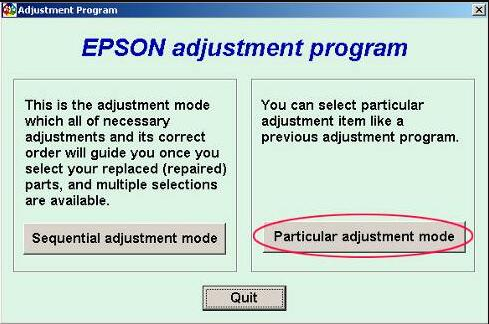
Click Particular Adjustment Mode.
Select Waste Ink Pad Counter.
Click Check.
Select Main Pad Counter.
Click Initialize.
Restart the printer.
After the reset is completed successfully, the Service Required warning should disappear and printing should resume normally.
Signs Your Epson Printer Needs a Waste Ink Counter Reset
Red lights are blinking continuously.
The printer refuses to print.
Service Required appears on screen.
Printer software displays maintenance warnings.
The printer suddenly stops after working normally.
Can I Continue Printing Without Resetting?
Usually no. Once the protection counter reaches its limit, Epson printers may completely block printing operations until maintenance is performed.
Although the hardware may still function correctly, the software lock prevents normal operation.
Does Resetting Replace the Waste Ink Pad?
No. Resetting only clears the software counter.
The physical waste ink pads remain unchanged. If your printer has processed a very large number of pages, the pads may eventually require cleaning or replacement.
For many home users and small offices, resetting the counter restores normal operation for a long period.
Benefits of Using Epson Adjustment Program
Fixes Service Required errors.
Clears waste ink pad counter warnings.
Removes blinking red light problems.
Restores printer functionality.
Supports many Epson printer models.
Reduces maintenance downtime.
Provides access to maintenance features.
Supported Epson Printer Series
The Epson Adjustment Program is available for many popular printer models, including:
What causes Waste Ink Pads Counter Overflow Error?
The error occurs when the printer’s internal waste ink pad counter reaches its maximum predefined value.
Can Epson Adjustment Program fix this error?
Yes. The Epson Adjustment Program is commonly used to reset the waste ink pad counter and clear maintenance warnings.
Why are my Epson printer lights blinking?
Blinking lights often indicate a waste ink pad counter overflow, maintenance warning, or Service Required condition.
Do I need to replace the waste ink pad after resetting?
Not always. However, printers with high print volumes may eventually require physical maintenance.
What is AdjProg.exe?
AdjProg.exe is the executable file used to run the Epson Adjustment Program.
Does this error affect all Epson printers?
Most Epson printer families use a similar waste ink counter system, including EcoTank, L Series, Stylus, WorkForce, Expression Home, and PLQ models.
Conclusion
Waste Ink Pads Counter Overflow Error is a common Epson printer issue caused by the internal waste ink protection counter reaching its predefined limit. In most cases, the problem can be resolved using the Epson Adjustment Program. By resetting the counter and following proper maintenance procedures, users can restore printer functionality and continue printing without replacing the printer.